How to Revert an eMotion LV1 Classic Console to Default State
Jan 22, 2026
Learn how to revert an eMotion LV1 Classic console to the factory default state.
Please note: The steps below only address clearing user data and settings without affecting the installed software/firmware.
Clear user data and settings, follow these steps:
Remove Session Files
In the Admin Kiosk, click the cogwheel icon.
Under Locations, click on Session Folder.
Back up (optional) the content in the Session Folder and delete it.
Back under Locations, go to History.
Back up (optional) the content in the History folder and delete it.
Clear User Data files from the D:\ Drive
In the Admin Kiosk, click the cogwheel icon.
Under Locations, click on Session Folder.
In the window that opens, click on User data (D:\) (in the address bar).
Make sure that only the Users and Programdata folders exist. Delete all other files/folders.
Reset Mixer Settings
In the Admin Kiosk, click the cogwheel icon.
Under Troubleshoot, click on Clean Cache/Prefs, then click 'Ok'.
Remove Plugin Preset Files (optional)
In the Admin Kiosk, click the cogwheel icon.
Under Locations, click on Plugin Presets Folder.
In the Plug-In Settings folder, select all folders and delete them.
Time and Date Settings
In the Admin Kiosk, If the Time and Date are not correct, first, make sure the console is connected to the internet.
Click on the pencil icon (top right).
Press ‘Sync’.
Check Waves Central Account
Make sure you are logged into the correct Waves Central account:
In the Admin Kiosk, click on ‘Central’.
In Waves Central, check which account is signed in (top right). Log out if necessary.
Apply Pending Updates
In Waves Central, if updates are available, the Updates Available button will be highlighted in red. Follow the steps in the How to Update eMotion LV1 Classic Console article.
Please read the notes below before resetting your console.
Important Notes:
Factory resetting the console will revert it to an initialized state with default settings. You will need to reconfigure your mixer settings and reapply software updates after the factory reset.
Do not use the LV1 Classic Recovery tool to create a backup point. Only use the LV1 Classic Recovery tool to restore the console to factory default settings per the instructions below.
We highly recommend only saving sessions files (.emo file extension) and other user files on the console’s user data (D:\) drive, which is not affected by the factory reset process. Back up any important files you may have stored on your system (C:\) drive before resetting the console.
Waves licenses activated on the console will not be affected by the factory reset process.
The recent sessions list in the ‘SHOW’ tab will be cleared. To repopulate this list, reload your sessions.
To revert the eMotion LV1 Classic console to its factory default state, follow these steps:
Access the console’s Kiosk window by going to the Setup tab and pressing the ‘Admin’ button.
Click on the cogwheel icon to open Advanced Admin mode.
Go to Utilities > Recovery
A prompt will appear. Read it and click OK
In the ‘LV1 Classic Recovery’ window, click on ‘LV1 Classic Recovery’
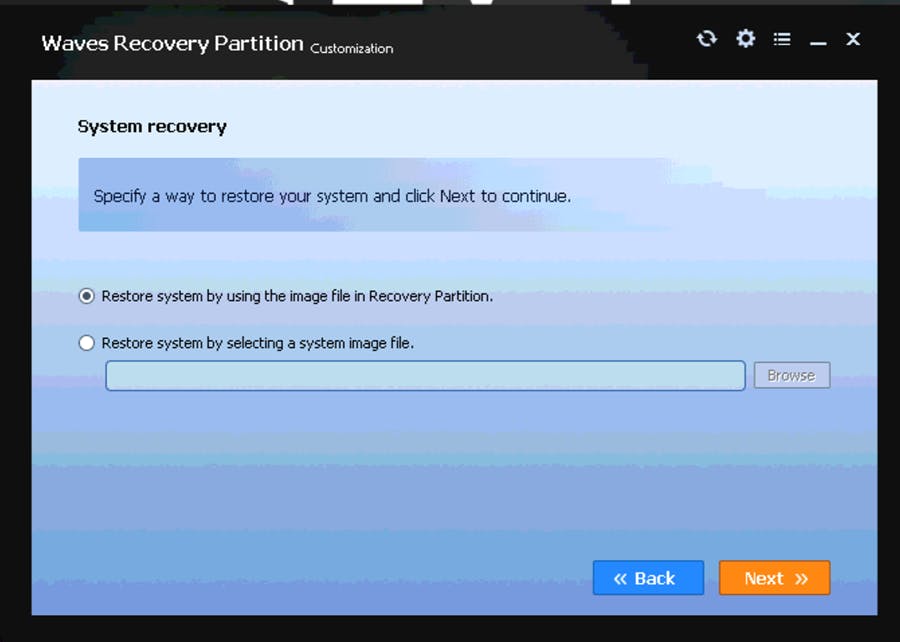
Checkmark ‘Restore a system by using the image file in Recovery partition’ and click ‘Next’
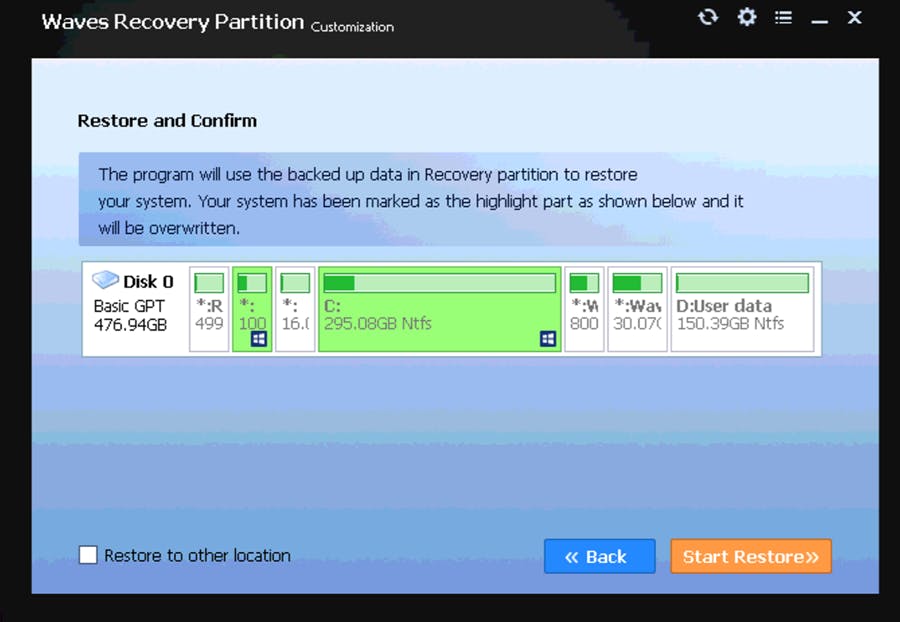
Confirm that the system (C:\) drive is selected and click on ‘Start Restore’.
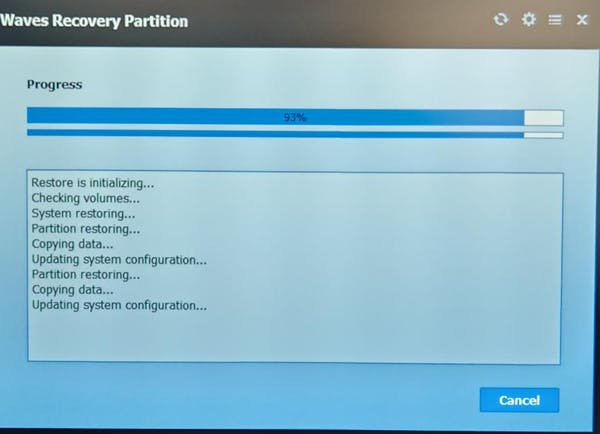
At this point, the recovery process will begin. It may take a few minutes.
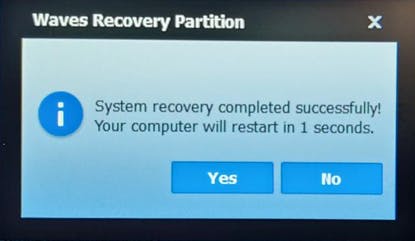
Once the recovery process is done, the following prompt will appear: Click Yes or wait 10 seconds for the console to automatically restart.
Access the console’s Kiosk window by going to the Setup tab and pressing the ‘Admin’ button.
In the Admin Kiosk, click the cogwheel icon. Under Locations, click on Sessions Folder.
In the Sessions folder, locate the CurrentLV1.dat file and delete it.
At this point, the console is back to its factory state., we strongly recommend to update the console to the latest version. To do so, follow the steps in the How to Update eMotion LV1 Classic Console article.
<div class="msg-box text-left mb-12">You may find this content helpful: To be able to view it, <a href="/legal/cookie-policy" target="_top" title="">allow Performance Cookies here</a>.</div>
False
False
fa3b03cb-7bd5-4e51-bb2d-6be6d05739d5
True
Start Free
true
true
false
voTekqO2wEJBRRQbsEWTHeJEaV5FbTWvet3JZATG
652445
6LeG-IcUAAAAAIb42eguHdUztlZNcrLPhuk81WSM
6LftoDMUAAAAAC9QpaYXNehGHSu__XxRJyFAIgkJ
6LeIxAcTAAAAAJcZVRqyHh71UMIEGNQ_MXjiZKhI
6
5
2026
1
0
1
80
30
#000000
#fff
#fff
#000
#e8e8e8
{
"before": [{
"text": "Waves Creative Access",
"link": "/subscriptions",
"design": "link"
}, {
"text": "Start Free",
"link": "/subscriptions",
"design": "button"
}
],
"beforeOlm": [{
"text": "AI Mastering Online",
"link": "/online-mastering",
"design": "link"
}, {
"text": "Try Now",
"link": "/online-mastering",
"design": "button"
}
],
"topMenu": [{
"text": "Products",
"link": "/products",
"subMenu": [{
"sectionTitle": "Plugins",
"sectionItems": [{
"text": "Plugins",
"link": "/plugins",
"tagline": "Shape your mixes, masters and productions with award-winning plugins",
"icon": "plugins"
}, {
"text": "Bundles",
"link": "/bundles",
"tagline": "Save big on your favorite tools with our curated plugin collections",
"icon": "bundles"
}, {
"text": "Waves Creative Access",
"link": "/subscriptions",
"tagline": "Subscribe to the world’s biggest plugin collection: Try free for 7 days",
"icon": "creative-access"
}, {
"text": "StudioVerse",
"link": "/studioverse",
"tagline": "Access a massive online library of plugin chains directly from your DAW",
"icon": "studioverse"
}, {
"text": "Mixers & Racks",
"link": "/mixers-racks",
"tagline": "Mix with the Waves LV1 mixer console or supercharge your setup with real-time plugin racks",
"icon": "mixers-racks"
}, {
"text": "Waves Audio Courses",
"link": "/courses",
"tagline": "Level up your skills with courses taught by Grammy–winning engineers",
"icon": "courses"
}
]
}, {
"sectionTitle": "Online Services",
"sectionItems": [{
"text": "AI Mastering Online",
"link": "/online-mastering",
"tagline": "Master your tracks online with Grammy-winning AI technology ",
"icon": "olm"
}, {
"text": "Voice ReGen",
"link": "/voice-regen",
"tagline": "Remove Background Noise from Audio and Video w/ AI",
"icon": "illugen"
}, {
"text": "ILLUGEN",
"link": "/illugen",
"tagline": "AI text-to-sample engine: Generate sounds from your wild imagination",
"icon": "illugen"
}, {
"text": "Waves Stream",
"link": "/plugins/waves-stream",
"tagline": "Stream audio in real time when collaborating remotely",
"icon": "stream"
}
]
}, {
"sectionTitle": "Hardware",
"sectionItems": [{
"text": "Hardware",
"link": "/hardware",
"tagline": "Mix with the Waves LV1 Classic console or by adding real-time processing to any console",
"icon": "hardware"
}, {
"text": "System Builder",
"link": "/system-builder",
"tagline": "Customize your Waves system for live sound mixing",
"icon": "system-builder"
}
]
}
]
}, {
"text": "Solutions",
"link": "/solutions",
"subMenu": [{
"sectionTitle": "Studio",
"sectionItems": [{
"text": "Plugins",
"link": "/plugins",
"tagline": "Shape your mixes, masters and productions with award-winning plugins",
"icon": "plugins"
}, {
"text": "Bundles",
"link": "/bundles",
"tagline": "Save big on your favorite tools with our curated plugin collections",
"icon": "bundles"
}, {
"text": "Waves Creative Access",
"link": "/subscriptions",
"tagline": "Subscribe to the world’s biggest plugin collection: Try free for 7 days",
"icon": "creative-access"
}, {
"text": "AI Mastering Online",
"link": "/online-mastering",
"tagline": "Master your tracks online with Grammy-winning AI technology ",
"icon": "olm-blue"
}, {
"text": "StudioVerse",
"link": "/studioverse",
"tagline": "Access a massive online library of plugin chains directly from your DAW",
"icon": "studioverse"
}, {
"text": "Voice ReGen",
"link": "/voice-regen",
"tagline": "Remove Background Noise from Audio and Video w/ AI",
"icon": "illugen"
}, {
"text": "ILLUGEN",
"link": "/illugen",
"tagline": "AI text-to-sample engine: Generate sounds from your wild imagination",
"icon": "illugen-blue"
}
]
}, {
"sectionTitle": "Live Sound",
"sectionItems": [{
"text": "Live Sound",
"link": "/live-sound",
"tagline": "Bring studio-quality sound to live events of any size",
"icon": "live-sound"
}, {
"text": "Houses of Worship",
"link": "/houses-of-worship",
"tagline": "Deliver crystal-clear sound to every seat and every stream, trusted by churches worldwide",
"icon": "how"
}, {
"text": "Broadcast Audio",
"link": "/broadcast-audio",
"tagline": "Mix superior broadcast sound, including cloud-based solutions",
"icon": "broadcast"
}
]
}, {
"sectionTitle": "Consumer Audio",
"sectionItems": [{
"text": "Waves Maxx",
"link": "https://maxx.com",
"tagline": "Enhance laptops, tablets, and speakers with studio-grade audio technology",
"icon": "maxx"
}
]
}
]
}, {
"text": "Downloads",
"link": "/downloads",
"subMenu": [{
"sectionTitle": "Downloads",
"sectionItems": [{
"text": "Waves Central",
"link": "/downloads/central",
"tagline": "Download Waves Central to install or update Waves products",
"icon": "central"
}, {
"text": "All Downloads",
"link": "/downloads",
"tagline": "Browse all available downloads",
"icon": "all-downloads"
}
]
}
]
}, {
"text": "Support",
"link": "/support ",
"subMenu": [{
"sectionTitle": "Support",
"sectionItems": [{
"text": "Install & Activate Products",
"link": "/support/activate",
"tagline": "Get help with the installation and activation of Waves products",
"icon": "install-activate"
}, {
"text": "System Requirements",
"link": "/support/tech-specs/system-requirements",
"tagline": "Review specs to ensure full compatibility with Waves products",
"icon": "system-req"
}, {
"text": "All Support Articles",
"link": "/support",
"tagline": "Explore tips, how-to guides, and troubleshooting in our knowledge base",
"icon": "support-articles"
}, {
"text": "Contact Us",
"link": "/contact-us",
"tagline": "Need help? Our world-class support team is here for you",
"icon": "contact-us"
}
]
}
]
}, {
"text": "Learn",
"link": "/learn",
"subMenu": [{
"sectionTitle": "",
"sectionItems": [{
"text": "Videos",
"link": "/videos",
"tagline": "Watch quick tutorials and deep-dive walkthroughs",
"icon": "videos"
}, {
"text": "Blog",
"link": "/blog",
"tagline": "Read expert insights, tips, and creative techniques",
"icon": "blog"
}, {
"text": "By Topic",
"link": "/tags",
"tagline": "Explore content by category",
"icon": "by-topic"
}, {
"text": "Courses",
"link": "/courses",
"tagline": "Level up your skills with courses taught by Grammy–winning engineers",
"icon": "courses-red"
}
]
},
{
"sectionTitle": "",
"sectionItems": [{
"text": "News",
"link": "/news",
"tagline": "Catch the latest updates and releases from Waves",
"icon": "news"
}, {
"text": "Artists",
"link": "/artists",
"tagline": "See the top creators that use Waves in their sessions",
"icon": "artists"
}, {
"text": "Events",
"link": "/events",
"tagline": "Find out where Waves is showing up live and online",
"icon": "events"
}, {
"text": "Forum",
"link": "https://forum.waves.com",
"tagline": "Join the conversation with fellow producers and engineers",
"icon": "forum"
}
]
}
]
}, {
"text": "Specials",
"link": "/specials"
}
]
}
[{"bannerGUID":"2e76fc8a-3a6d-4461-8d47-240c619ea29b","bannerDisplayName":"Vocal Plugin Sale - May 2026","bannerTypeGUID":"dd5f8368-6b03-465f-b570-48baddb35b08","typeName":"OfferFooter","bannerImage":"/images/footer-offer/2026/may/vocal-sale-may-2026.jpg","bannerURL":"/plugins/vocal","bannerPriority":1,"bannerTitle":"Vocal Plugin Sale: Shop Plugins","gaValue":"vocal-sale-may-2026"},{"bannerGUID":"a04448ca-692d-465a-94b9-b9c04bcfd552","bannerDisplayName":"Free Plugin Bonus - May 2026","bannerTypeGUID":"dd5f8368-6b03-465f-b570-48baddb35b08","typeName":"OfferFooter","bannerImage":"/images/footer-offer/2026/may/50-80-free-plugins-vocal-sale-may-2026.jpg","bannerURL":"/free-plugins-spend-50-spend-80-sale-april-may-2026","bannerPriority":2,"bannerTitle":"Free Plugin Bonus","gaValue":"50-80-free-plugins-vocal-sale-may-2026"},{"bannerGUID":"d4286ff5-e6de-4b2f-8bc9-e96a46843f09","bannerDisplayName":"ILLUGEN 2.0 - April 2026","bannerTypeGUID":"dd5f8368-6b03-465f-b570-48baddb35b08","typeName":"OfferFooter","bannerImage":"/images/footer-offer/2026/april/illugen-april-2026.jpg","bannerURL":"/illugen","bannerPriority":4,"bannerTitle":"New! ILLUGEN 2.0","gaValue":"illugen-april-2026"},{"bannerGUID":"e9238c9a-ec9b-4669-b6c9-12a38974902a","bannerDisplayName":"My Recommended Products","bannerTypeGUID":"dd5f8368-6b03-465f-b570-48baddb35b08","typeName":"OfferFooter","bannerImage":"/images/footer-offer/2023/november/my-recommended-products-bf.jpg","bannerURL":"/my-recommended-products","bannerPriority":5,"bannerTitle":"Personal Product Recommendations: See Products","gaValue":"my-recommended-products"},{"bannerGUID":"e6b77202-75d8-4086-b586-af00dc3c289a","bannerDisplayName":"Upgrades","bannerTypeGUID":"dd5f8368-6b03-465f-b570-48baddb35b08","typeName":"OfferFooter","bannerImage":"/images/footer-offer/2023/september/upgrades.jpg","bannerURL":"/account/upgrades","bannerPriority":6,"bannerTitle":"Upgrade to a Bigger Bundle: See Upgrades","gaValue":"upgrade-to-a-bigger-bundle"},{"bannerGUID":"ba16dbd5-bdde-40ea-8517-cb420402d004","bannerDisplayName":"Waves V16 Update","bannerTypeGUID":"dd5f8368-6b03-465f-b570-48baddb35b08","typeName":"OfferFooter","bannerImage":"/images/footer-offer/2025/december/v16-update-dec-2025.jpg","bannerURL":"/v16","bannerPriority":7,"bannerTitle":"V16 Update: Learn More","gaValue":"v16-update-dec-2025"}]