false
false
This content is not available in your country.
PRODUCTION
756a2266-d0ca-4271-bbb3-37286f05ef38
https://media.wavescdn.com
public
https://register.waves.com
b705eb6e-5be8-46d1-a9e3-8fbf47be7a04
n
<div class="msg-box text-left mb-12">You may find this content helpful: To be able to view it, <a href="/legal/cookie-notice-and-privacy-choices#customize" target="_top" title="">enable Functional Technologies</a>.</div>
False
False
c39e29e9-02f5-4dc2-a4f3-52312f74474c
True
Start Free
true
true
false
voTekqO2wEJBRRQbsEWTHeJEaV5FbTWvet3JZATG
652445
6LeG-IcUAAAAAIb42eguHdUztlZNcrLPhuk81WSM
6LftoDMUAAAAAC9QpaYXNehGHSu__XxRJyFAIgkJ
6LeIxAcTAAAAAJcZVRqyHh71UMIEGNQ_MXjiZKhI
15
10
2026
16
9
7
80
30
#000000
#fff
#fff
#000
#e8e8e8
[{"bannerGUID":"2e76fc8a-3a6d-4461-8d47-240c619ea29b","bannerDisplayName":"Studio Legends Sale - October 2026","bannerTypeGUID":"dd5f8368-6b03-465f-b570-48baddb35b08","typeName":"OfferFooter","bannerImage":"/images/footer-offer/2026/october/studio-legends-sale-oct-2026.jpg","bannerURL":"/studio-legends","bannerPriority":1,"bannerTitle":"Studio Legends Plugins from $29.99 each","gaValue":"studio-legends-sale-oct-2026"},{"bannerGUID":"a04448ca-692d-465a-94b9-b9c04bcfd552","bannerDisplayName":"Free Plugin Bonus - 50 80 - October 2026","bannerTypeGUID":"dd5f8368-6b03-465f-b570-48baddb35b08","typeName":"OfferFooter","bannerImage":"/images/footer-offer/2026/october/free-plugins-studio-legends-sale-oct-2026.jpg","bannerURL":"/free-plugins-spend-50-spend-80-october-2026","bannerPriority":2,"bannerTitle":"Free Plugin Bonus","gaValue":"free-plugins-studio-legends-sale-oct-2026"},{"bannerGUID":"a0996540-a655-4dde-9b0c-3c6bbbff93af","bannerDisplayName":"WUP 25 PC Off","bannerTypeGUID":"dd5f8368-6b03-465f-b570-48baddb35b08","typeName":"OfferFooter","bannerImage":"/images/footer-offer/2026/october/wup-25-sale-oct-2026.jpg","bannerURL":"/account/get-waves-update-plan","bannerPriority":4,"bannerTitle":"WUP 25% Off","gaValue":"wup-25-sale-oct-2026"},{"bannerGUID":"d4286ff5-e6de-4b2f-8bc9-e96a46843f09","bannerDisplayName":"V17 - June 2026","bannerTypeGUID":"dd5f8368-6b03-465f-b570-48baddb35b08","typeName":"OfferFooter","bannerImage":"/images/footer-offer/2026/june/v17-offer-june-2026.jpg","bannerURL":"/v17","bannerPriority":5,"bannerTitle":"New! V17","gaValue":"v17-offer-june-2026"},{"bannerGUID":"e9238c9a-ec9b-4669-b6c9-12a38974902a","bannerDisplayName":"My Recommended Products","bannerTypeGUID":"dd5f8368-6b03-465f-b570-48baddb35b08","typeName":"OfferFooter","bannerImage":"/images/footer-offer/2023/november/my-recommended-products-bf.jpg","bannerURL":"/my-recommended-products","bannerPriority":6,"bannerTitle":"Personal Product Recommendations: See Products","gaValue":"my-recommended-products"},{"bannerGUID":"e6b77202-75d8-4086-b586-af00dc3c289a","bannerDisplayName":"Upgrades","bannerTypeGUID":"dd5f8368-6b03-465f-b570-48baddb35b08","typeName":"OfferFooter","bannerImage":"/images/footer-offer/2023/september/upgrades.jpg","bannerURL":"/account/upgrades","bannerPriority":7,"bannerTitle":"Upgrade to a Bigger Bundle: See Upgrades","gaValue":"upgrade-to-a-bigger-bundle"}]
0
[{"itemOrder":1,"tierName":"Ultimate"},{"itemOrder":2,"tierName":"Essential"}]
{"itemID":3608620,"userID":65,"wcaVisitCount":0,"wcaVisitDayCount":0,"orderCount":0,"pluginCount":0,"hadWCA":false,"hasActiveWCA":false,"hasFreePack":false,"hasSBSPaymentIssue":false,"wcaRecurring":false,"persona":"wca-prospect","wcaTier":"","wcaPeriod":"","ltv":0,"cacheVersion":0}
0
True
True
bp-checkout.waves.com
False
[{"slot":8,"codeName":"ListSuperSaleBadge","testType":0,"variations":"yes:50, no:50","isActive":true,"masterSlotID":0},{"slot":10,"codeName":"HPHeroWCA","testType":0,"variations":"creative-access:25, one-subscription:25, test-drive:25,access-240:25","isActive":true,"masterSlotID":0},{"slot":21,"codeName":"CancelWCAPositive","testType":0,"variations":"old:50, positive:50","isActive":true,"masterSlotID":0},{"slot":23,"codeName":"CartOnSale","testType":0,"variations":"yes:50, no:50","isActive":true,"masterSlotID":0}]
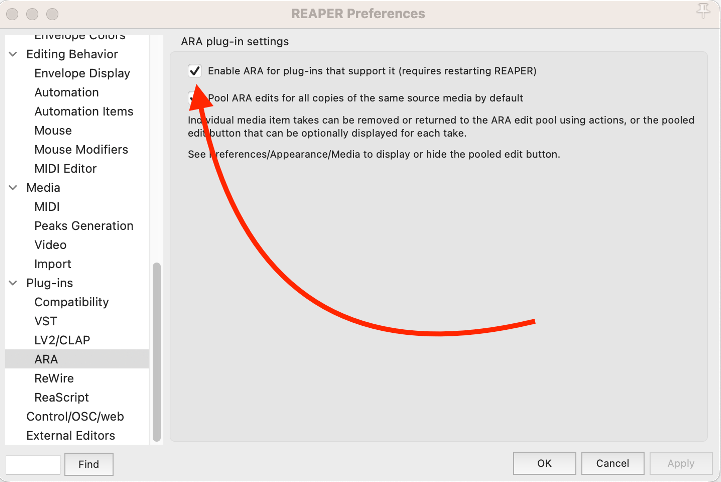 When changing the status of this feature, make sure to restart REAPER to apply the changes.